

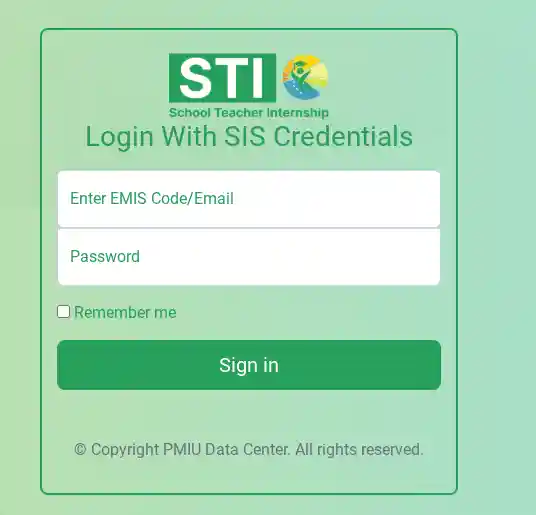
Many users search for STI login with SIS credentials and end up on the wrong page. The reason is simple: the STI portal has more than one login screen. One is for candidates who sign in with a CNIC and password. The other is the STI Admin Login, which uses SIS credentials, meaning an EMIS Code or Email and a password. This guide explains the difference and shows how to log in step by step, along with fixes for common STI login problems in 2026.
What Are SIS Credentials?
SIS credentials are the username and password linked to your account in the school data system run by the Punjab School Education Department. On the STI Admin Login page, the first field asks for your EMIS Code or Email. The second field asks for your password.
The EMIS Code is the unique identification code assigned to a school. For this reason, SIS credentials are usually meant for school-level or administrative users. A candidate applying for STI Jobs 2026 normally uses the CNIC login instead.
Also read
Check Your Name in CTI Interview List 2026 – Latest Interview Marks, Final List & Best Tips
Two Login Pages on the STI Portal
Before you start, identify which page you need. Entering the wrong details on the wrong page is the most common cause of failure.
| Login Type | Who Uses It | What You Enter |
|---|---|---|
| STI Login (Candidate) | Applicants and registered candidates | CNIC and password |
| STI Admin Login (SIS) | School or administrative users | EMIS Code/Email and password |
The candidate page is on the main site at sti.pesrp.edu.pk. The SIS page is on the admin address, stiadmin.pesrp.edu.pk. Both belong to PESRP, and the pages are marked as part of the PMIU data system.
Requirements Before You Log In
A few preparations save time. Keep these ready:
A working internet connection and an updated browser such as Chrome or Edge.
Your correct EMIS Code or the email address registered with your SIS account.
Your current password, written exactly as it was set, including capital letters and symbols.
A computer or phone with the correct date and time, since odd settings can sometimes cause security errors.
If you have never received SIS credentials, contact your school head or your District Education Authority. A candidate cannot create such an account through the public registration page.
Also read

CTI Final Merit List 2026 Update – Check Your Name & Merit Position at cti-hep.punjab.gov.pk
How to Login With SIS Credentials in STI Portal 2026 (Step by Step)
Follow these steps carefully.
Step 1: Open the Correct Website
Open your browser and go to the official STI Admin Login page at stiadmin.pesrp.edu.pk/login. Check the address bar before typing anything. The domain should end in pesrp.edu.pk. If the address looks different, close the page.
Step 2: Find the “Login With SIS Credentials” Screen
The page is titled Login With SIS Credentials. You will see two boxes: one for EMIS Code/Email and one for the password. The footer credits the PMIU Data Center, which confirms you are on the right screen.
Step 3: Enter Your EMIS Code or Email
Type your EMIS Code or your registered email address in the first field. Do not add spaces before or after it. If you copy and paste, check that no extra character came with it.
Step 4: Enter Your Password
Type your password in the second field. Passwords are case-sensitive, so a small letter and a capital letter count as different characters. If the page has a show-password icon, use it once to make sure you typed correctly.
Step 5: Click the Login Button
Press the login or sign-in button and wait a few seconds. Do not click repeatedly, because extra clicks can slow the response or trigger a temporary block. After a successful login you will be taken into the portal dashboard.
Step 6: Log Out When You Finish
If you are on a shared or public computer, always log out and close the browser. Never choose to save passwords on a device that other people use.

How to Login to STI With CNIC and Password
Candidates who do not have SIS credentials should use the standard STI login. The page asks for your CNIC and password, and it offers a “Remember me” option. Enter the 13-digit CNIC without dashes unless the form shows a dash format, then type your password and sign in.
New users must register first. The STI register page asks for a 13-digit CNIC, a password, and a password confirmation. Use the same CNIC that appears on your documents, because later verification may compare the two.
Common STI Login Problems and Fixes
Even correct users sometimes face errors. Try these solutions in order.
Wrong EMIS Code or Email. Re-check every digit. If your school has more than one account, confirm which one holds the access.
Wrong password. Retype it slowly. Turn off Caps Lock, and check whether your keyboard language is still set to English.
Page not loading. The portal can become slow during busy recruitment periods, especially near a deadline. Try again after a few minutes or at a quieter hour.
Old browser data. Clear your cache and cookies, then reload the page. You can also try a private window.
Different device or network. Switch from mobile data to Wi-Fi, or the other way around, to rule out a connection issue.
Account locked after several attempts. Stop trying and wait before the next attempt. Repeated wrong entries can lock a login for a while.
What to Do If You Forgot Your Password
If you cannot remember your password, look on the login page for a reset or “forgot password” option. If one is not available for SIS accounts, do not guess repeatedly. Contact the person who manages your school’s account or your district education office, and ask for a reset. Be ready to share your EMIS Code and school name so they can verify you.
Safety Tips for STI Portal Login
The STI portal handles personal data, so basic security matters.
Never share your password with anyone, including people who offer to “fix” your account.
Do not enter your credentials on links received through WhatsApp or Facebook groups. Type the address yourself.
Ignore anyone who asks for money to give you portal access or a job. Official recruitment does not work that way.
Use a strong password with letters, numbers, and a symbol, and change it if you suspect someone has seen it.
Why Login Matters for STI Jobs 2026
For candidates, access to the portal is how application status, notices, and later updates are followed. For school-level users, SIS access supports the administrative side of the program. Whichever role you have, using the correct login page prevents delays and keeps your data safe.
Final Words
To summarize, login with SIS credentials on the STI portal by opening stiadmin.pesrp.edu.pk/login, entering your EMIS Code or Email, typing your password, and signing in. Candidates should use the CNIC-based STI login on sti.pesrp.edu.pk instead. If something fails, check the address, re-enter your details slowly, clear your browser data, and contact your district office for account issues. Following these steps will help you solve most STI login problems quickly in 2026.